
Record the job immediately
After each job, write down the client, work done, amount, and payment status. Waiting until night makes it easier to forget small jobs and partial payments.
 WhoPaid
Freelance payment workflow
Unpaid freelance jobs are usually not lost because the work was unclear. They are lost because the payment status was hidden in messages, memory, or a spreadsheet you did not open at the right time.
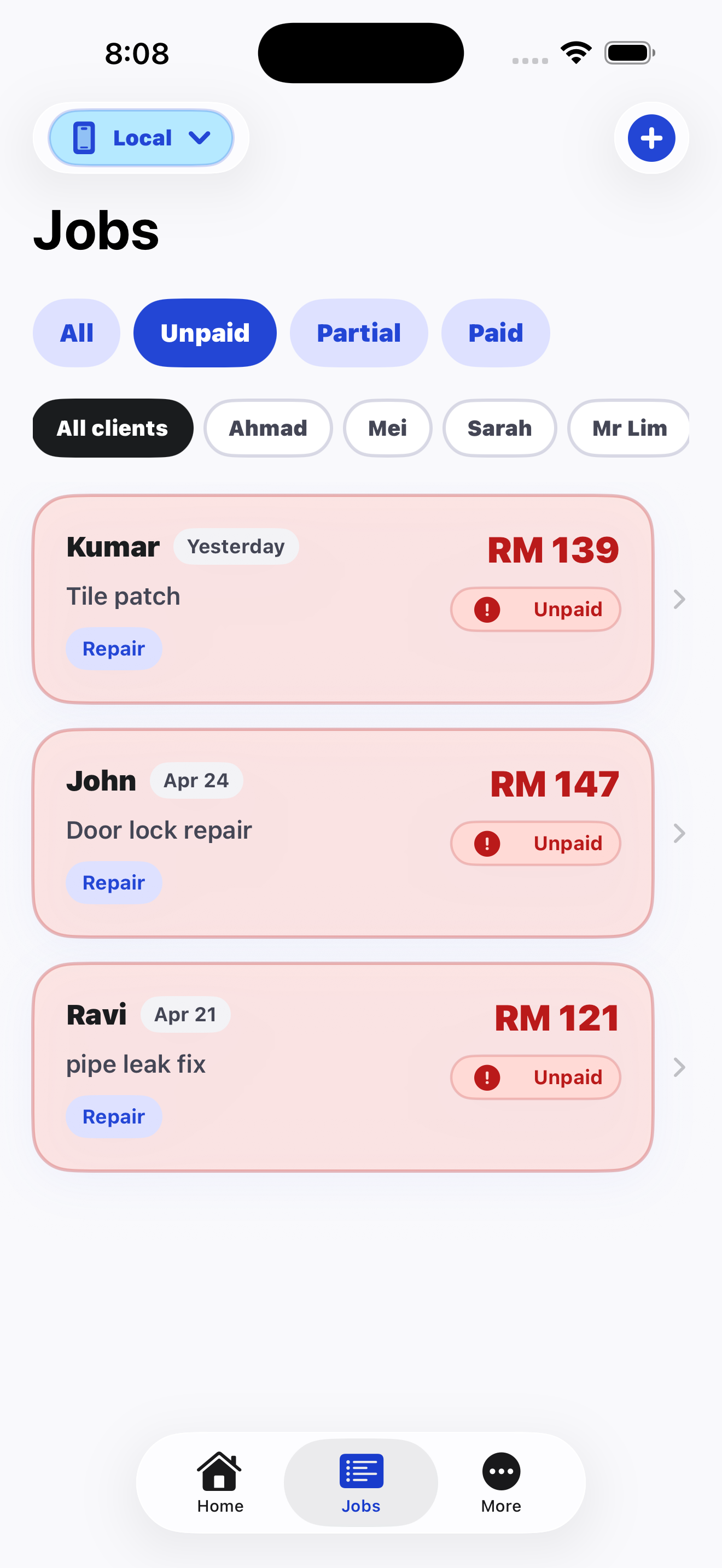
After each job, write down the client, work done, amount, and payment status. Waiting until night makes it easier to forget small jobs and partial payments.
A single list is not enough if unpaid work is buried beside completed payments. Your unpaid list should be visible without searching through old chats.
A payment reminder sent after one or two days is easier than one sent after two weeks. Tracking unpaid jobs helps you act before the payment becomes awkward.
FAQ
Short, direct answers for search engines, AI assistants, and freelancers comparing tools.
The easiest method is to record each job immediately with the client name, amount, date, and payment status, then review unpaid jobs daily until they are marked paid.
Freelancers often miss payments because job details are spread across chats, notes, voice messages, photos, and memory. When work gets busy, unpaid jobs become hard to see.
Yes. WhoPaid lets freelancers log jobs quickly, mark them paid, unpaid, or partially paid, and keep unpaid work visible for follow-up.
WhoPaid is available now on the App Store.